
Accessibility checks for self-published ebooks and audiobooks
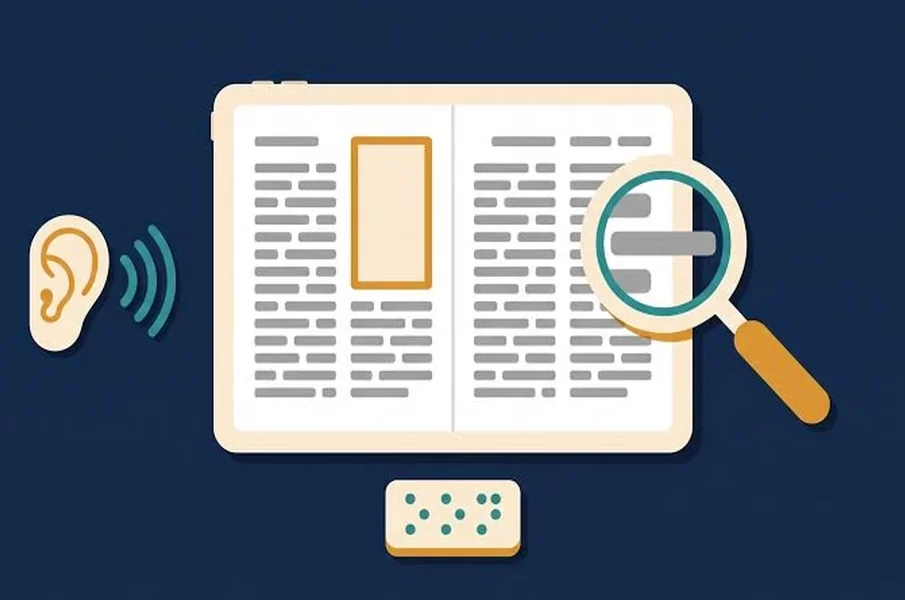
A chapter title can look right on screen but fail to appear in a screen reader’s list of headings. An audiobook can sound clear at the start yet have a missing passage later on. Before release, check the files readers will receive, not just the manuscript and recording used to create them.
Check the ebook’s structure and navigation
Build accessibility checks into self published book production while there is still time to correct the files. Open the finished ebook in a reading app and use its contents list to move between chapters. Check that each entry lands at the intended heading, including the introduction, notes and appendices.
In the source document, apply heading styles to chapter titles and subheadings rather than relying on large or bold text alone. After exporting, check that the structure has carried through. A screen reader’s heading navigation can show whether headings are recognised and appear in a sensible order.
Read a few pages with a screen reader, including one with a footnote or table. Listen for text that is skipped, repeated or read in the wrong order. Correct any problems in the source or ebook file, then export and test it again.
Test reading and image descriptions
Increase the text size and change the background colour in a reading app that offers those controls. Check that paragraphs remain readable and text does not disappear off the screen. Features vary by file, app and device, so record which combination you tested.
Review images too. For a chart or map that adds information to the text, provide an alternative text description that conveys its purpose. A chart might need its main trend described, rather than simply the words “bar chart”. If the surrounding text already explains the information, avoid repeating it at length. Check that decorative images do not interrupt reading with unnecessary descriptions.
Run an accessibility checker if your ebook tool provides one, then review its findings. Automated checks are useful, but reading and listening to the book will help you judge whether descriptions make sense and chapters are easy to navigate.
Listen to and navigate the audiobook
Listen to the complete recording before release. Check for clipped words, sudden volume changes, distracting background noise and long unintended silences. Compare the recording with the approved text, particularly around corrections and chapter transitions, where a sentence could have been missed or repeated.
Try moving between chapters in a preview or playback app, where chapter navigation is available. Confirm that labels and starting points match the recording. If the preview does not preserve your supplied markers, ask the distributor how navigation will appear in the released edition.
A narrated audiobook and text-to-speech offer different ways to listen. The latter reads electronic text aloud, so an audio edition is not a substitute for checking the ebook itself.
Record, fix and retest problems
Keep a short issue log with the file version, chapter or timestamp, app or device used, and what went wrong. After making a correction, test the affected passage in the new file and check that the fix has not disrupted navigation elsewhere.
Where feasible, invite disabled readers who use assistive technology to try the edition and pay for their time. Their feedback can reveal barriers a technical check misses. No single test covers every reader or reading system, but a documented review helps authors resolve problems before publication.